
60-second quickstart
Install Magpie, point it at a page and get clean, structured data back, kept on your own disk. No account, no credits, and no key for plain scraping.
On this page
magpie scrape https://example.com --format jsonOutput
{ "url": "https://example.com", "final_url": "https://example.com", "title": "Example Domain", "markdown": "This domain is for use in documentation examples without…", "structured_data": null}That’s the whole loop: a URL in, clean data out. The steps below do the same in the app, which also keeps every result on your own disk.
1. Install
Download the build for your OS and run the installer. There’s no account to make and no key to start — accept the licence and Magpie opens on its Overview.
Download Magpie →# compare with the published SHA-256shasum -a 256 Magpie.dmg# compare with the published SHA-256Get-FileHash .\magpie-desktop-amd64-installer.exe# compare with the published SHA-256sha256sum magpie-desktop*2. Paste a URL
Open Scrape from the sidebar and paste any public page into the URL field at the top.
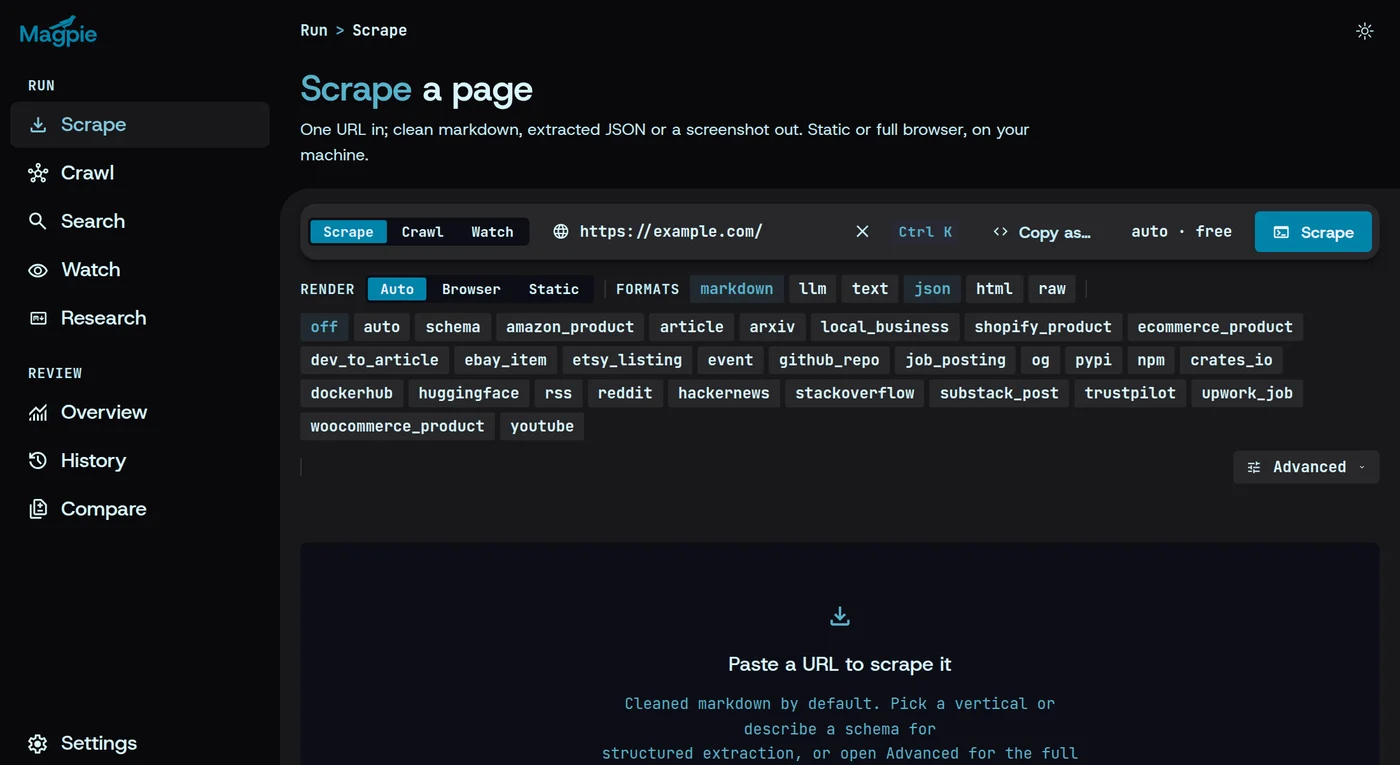
Paste the URL here
Pages behind a login need a session saved in Settings first — see Sessions.
3. Run it and read the result
Pick your formats — markdown is on already; add json — and press Scrape. The result opens in the pane below with a tab for each, and its markdown is saved to your cache in the same moment, so it’s still there after you quit.
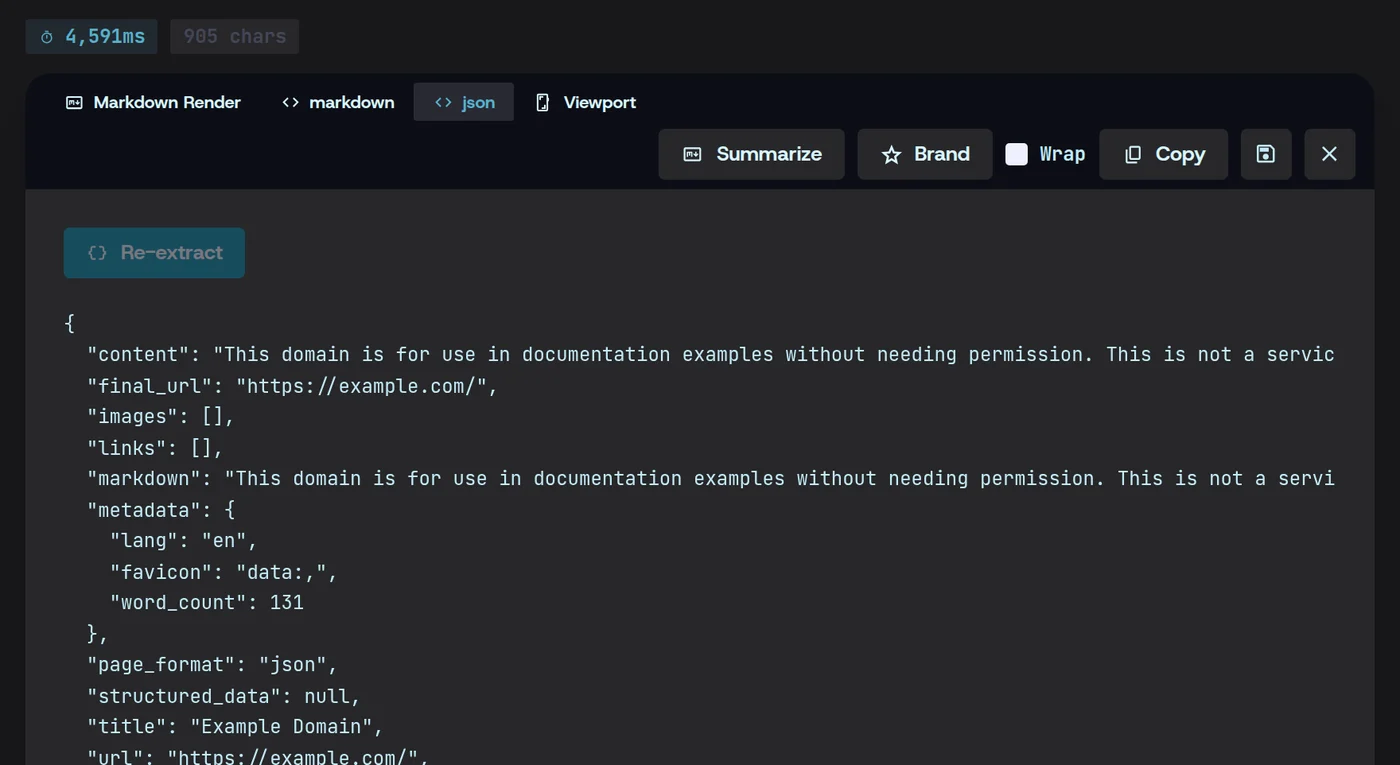
Already saved to your local cache
Every past run is in History, in the app’s sidebar — open one to read what it kept.
Where the result lives
Every result is kept on your own disk, in cache.db and the records folder beside it — the same file the CLI writes its history to. How to back them up is in Data & cache.
~/Library/Application Support/magpie/cache.db%LOCALAPPDATA%\magpie\cache.db~/.local/share/magpie/cache.db